 Help
HelpGetting started
Open EVoStickers
- In the browser: go to evostickers.app/web. Printing to a Bluetooth label printer needs Chrome or Edge on a computer or an Android phone (they have Web Bluetooth); sticker sheets print from any browser.
- On Android: install EVoStickers from Google Play (Android 7.0 or newer).
Sign in
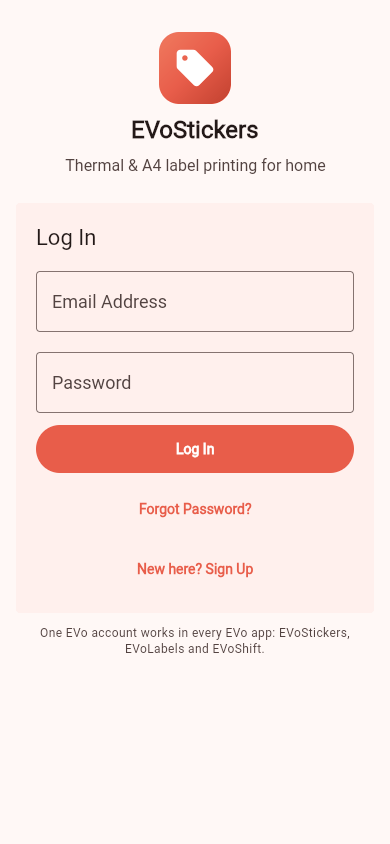
EVoStickers uses your EVo account - the same sign-in as EVoLabels and EVoShift. Sign in with Google, Apple or an e-mail address and password. A new e-mail account gets a verification e-mail first; open the link in it and tap "Check now". Forgot your password? Use "Forgot Password?" on the sign-in screen.
Choose your paper
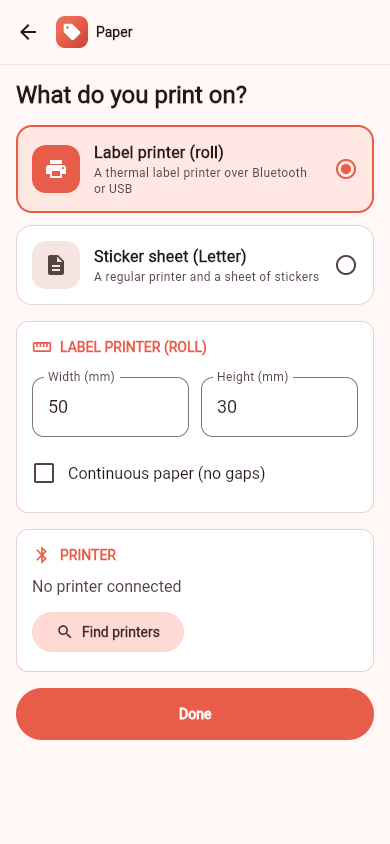
The first time, EVoStickers asks What do you print on?
- Label printer (roll): a thermal label printer over Bluetooth or USB. Enter the label's width and height in millimetres as printed on the roll, and tick "Continuous paper (no gaps)" for a roll without gaps between labels.
- Sticker sheet (A4): a regular printer and a sheet of stickers. Pick the sheet that matches yours.
You can change it any time in Settings > Paper and printer. Details: Paper and printers.
Your first sticker
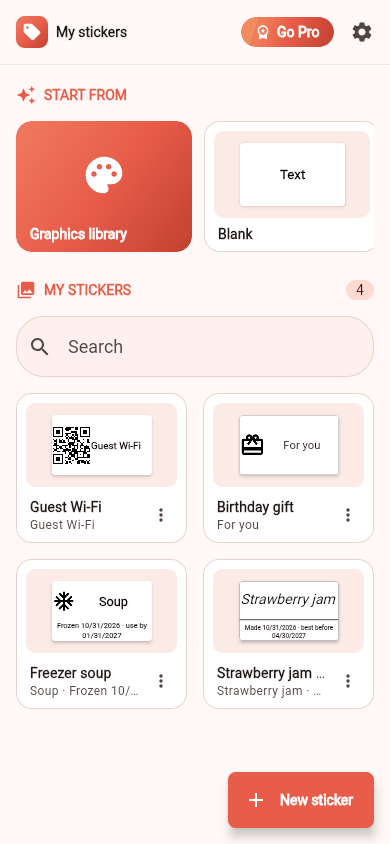
- On My stickers, pick a template under Start from (Jar, Freezer, Gift, QR and text...) or Blank, or tap New sticker.
- Tap a text on the sticker and type. Dates like "Made 31.10.2026" are time fields: they fill in themselves when you print.
- Give the sticker a Name and tap Save. It is now in "My stickers" for next time.
Choose the number of Copies and tap Print. On a label printer, connect it first (the app offers to find it). On a sticker sheet, the browser's or Android's print dialog opens: print at 100 % / actual size, without "fit to page". More in Paper and printers.