 Help
HelpThe editor and boxes
How a sticker is built
A sticker is a set of boxes - text, QR code, barcode, graphic, line or shape, photo - arranged in rows (Side by side) and columns (Stacked). Boxes inside a group share its space, so the layout always fills the sticker and nothing overlaps. You never place things with a ruler: you split, add and arrange boxes.
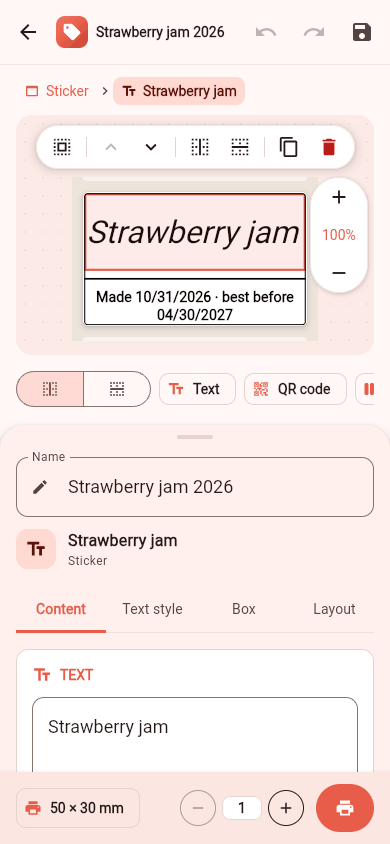
Selecting
- Tap a box on the sticker to select it. The breadcrumb above the sticker shows where it is ("Sticker > Group > Text"); tap a level to select it.
- Select the box around it moves up to the group; Select a box inside moves down.
- Press Esc (on a computer) or tap outside the sticker to select nothing; Edit the whole sticker selects it all again.
Adding and arranging
The floating toolbar over a selected box:
- Add to the right / Add below split the box and add a new one next to it.
- Move back / Move forward change the order inside a group.
- Duplicate box and Remove.
The Add row adds a Text, QR code, Barcode, Graphic, Line / shape or Photo (Pro) to the selected box.
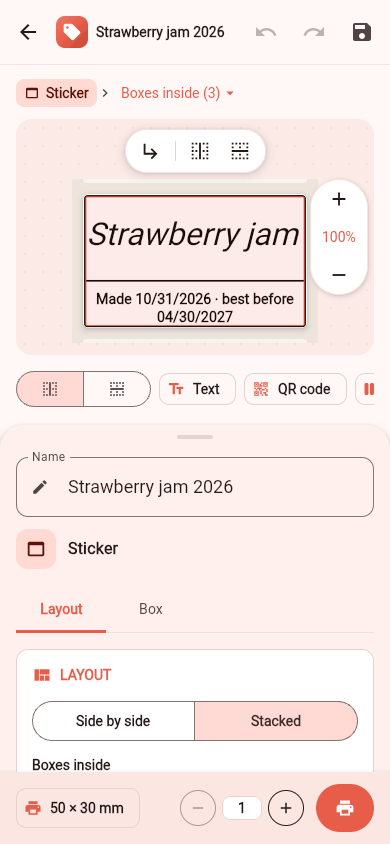
The inspector
Under the sticker (on a large screen, beside it) the inspector has tabs for the selected box:
| Tab | What you set |
|---|---|
| Content | The text, the code's content, the graphic, the photo |
| Text style | Font, size or Fit to box, bold, italic, underline, alignment |
| Box | Border, corners, padding, White on black, rotation |
| Layout | For a group: Side by side or Stacked, the boxes inside, alignment, Share of space |
Zoom, undo and saving
Zoom with + and -, or Fit to screen. Undo and Redo are in the top bar. Save keeps the sticker in "My stickers"; Save as copy keeps the original and saves a new one. Leaving with unsaved changes asks first.